Copilot shows people anything they already have access to. If a salary spreadsheet was shared with the whole company years ago, anyone can now get it just by asking. Copilot Readiness shows you where those files are before Copilot does, so you can turn it on with confidence.
It never changes anything
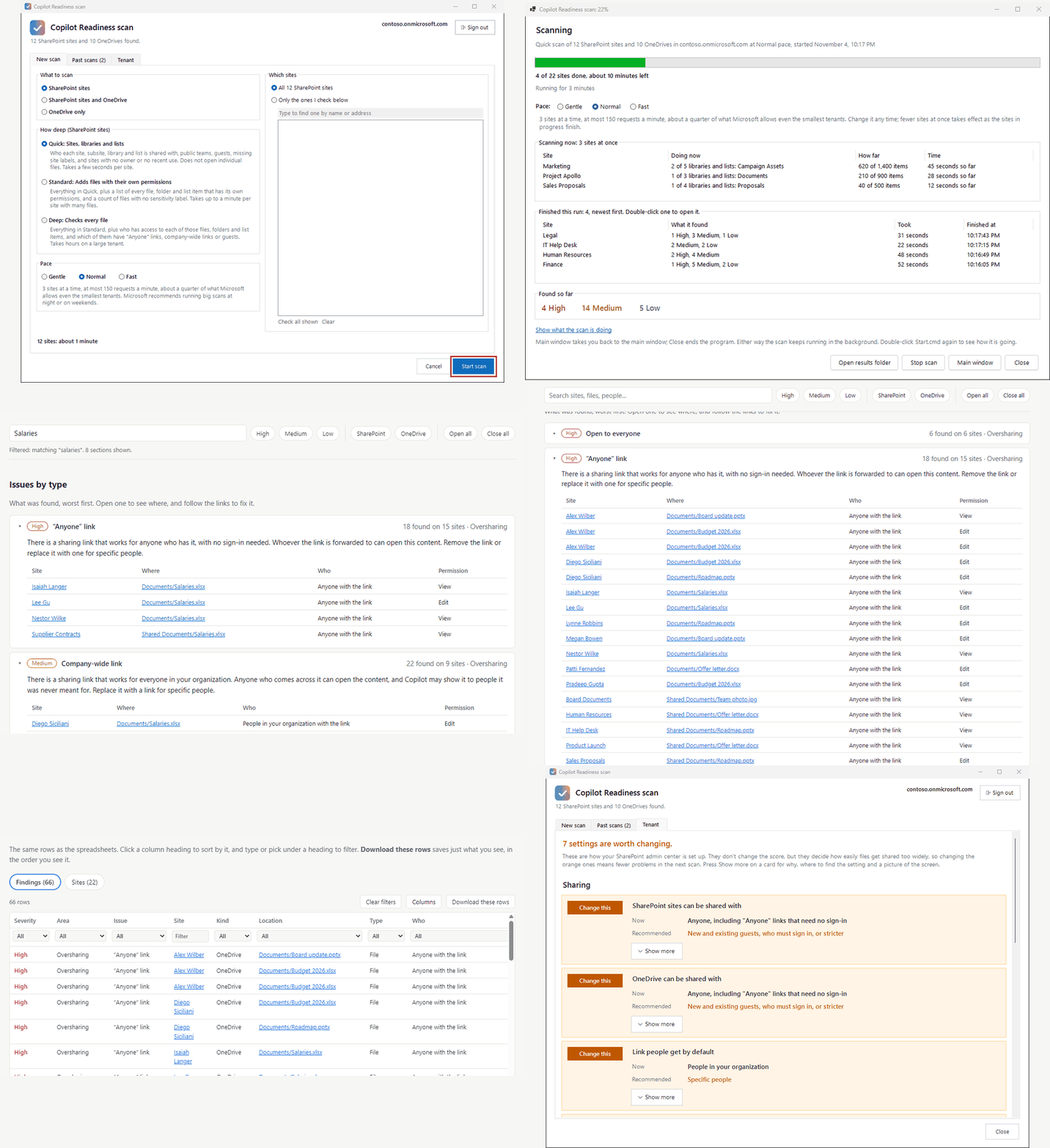
The scan only reads. Your sites, files and permissions stay exactly as they were.
Your results stay with you
It runs from your own PC and talks only to Microsoft. Nothing is sent anywhere else, including to me.
No expertise needed
There's nothing to build and no commands to type. Double-click it, press Start scan, and the report opens by itself.
Know where you stand in one look#
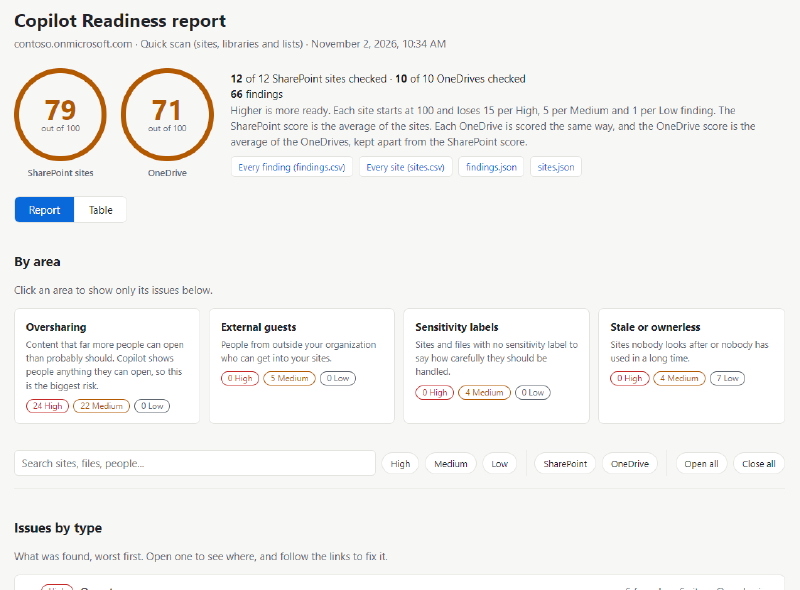
Every scan gives you a score out of 100, one for your SharePoint sites and one for your OneDrives. It’s something you can put in front of leadership, and something you can improve.
Below the scores, everything is sorted into four areas:
- Oversharing: content open to everyone, “Anyone” links, company-wide links and public teams. This is the biggest risk with Copilot.
- External guests: people from outside your organization who can get into your sites.
- Sensitivity labels: sites and files with no label to say how carefully they should be handled.
- Stale or ownerless sites: sites nobody looks after, or nobody has used in a long time.
Answer the question everyone asks#
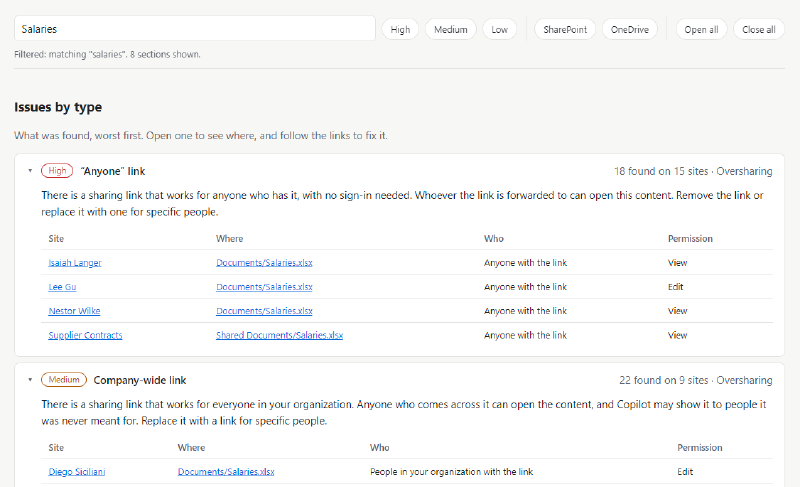
Search the report for what worries you most. Type “Salaries” and see every copy, where it lives, who can open it, and whether they can edit it.
Know exactly what to fix first#
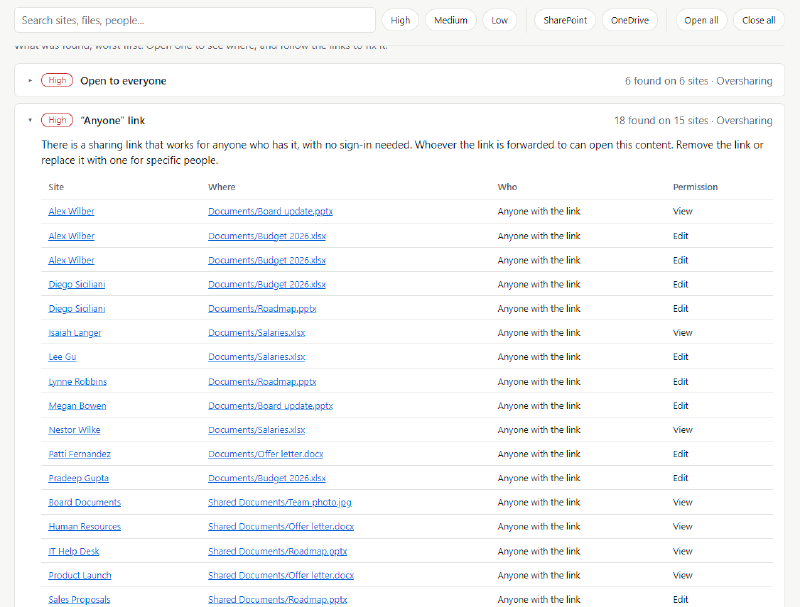
You don’t get a vague warning. Each kind of issue comes with a plain explanation of why it matters and what to do about it, worst first. Every row links straight to the site, folder or file, so you can go and fix it in a click.
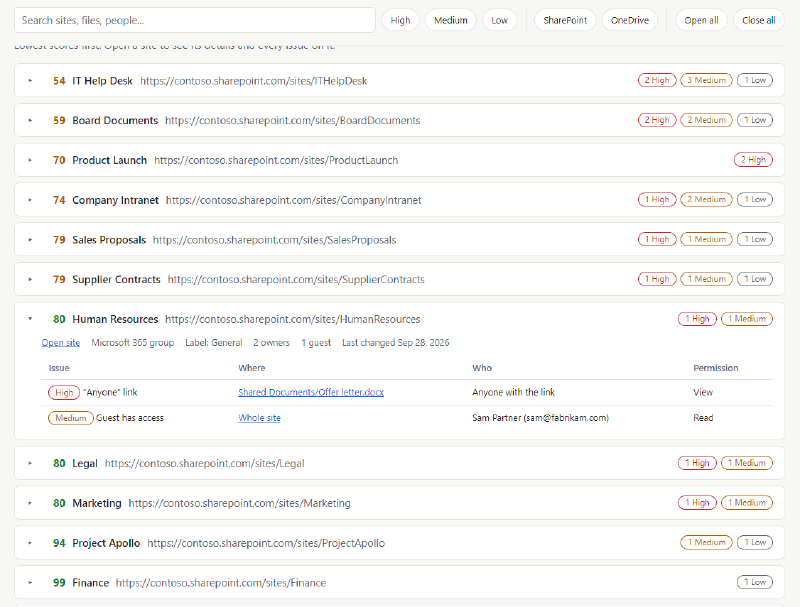
Prefer to work site by site? The same findings are listed by site, lowest score first, so your riskiest sites are at the top. Open one to see its owners, guests, label and every issue on it.
Hand the work to the right people#
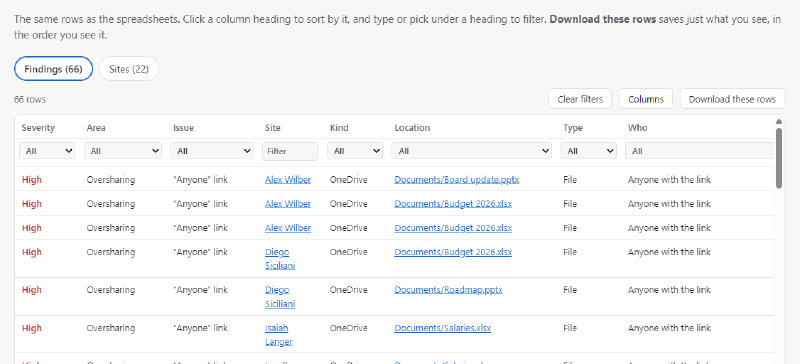
The Table view lets you sort and filter every finding, then download just the rows you need. You also get spreadsheets that open in Excel, including one for each OneDrive, so each person can be given only their own.
Fix the cause, not just the symptoms#
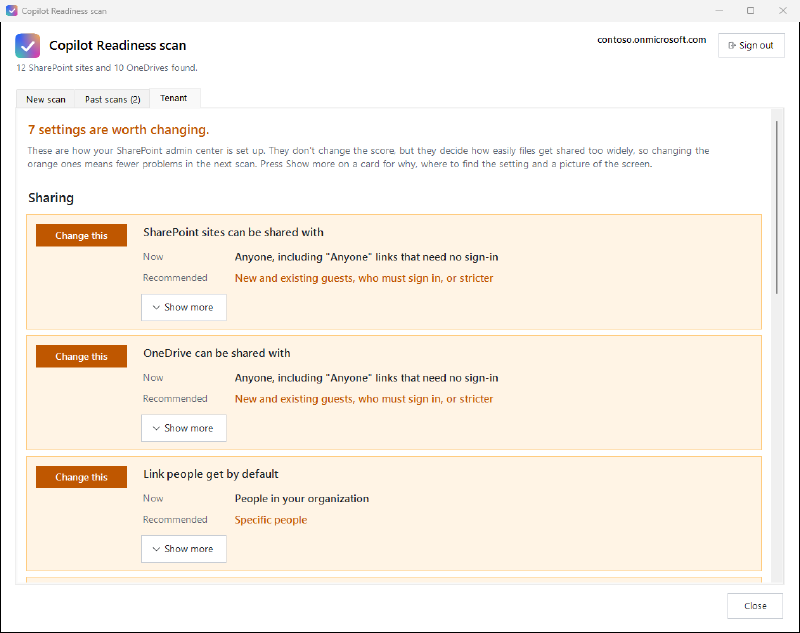
Files get overshared because of how sharing is set up. So it also reviews your SharePoint sharing settings, showing what each one is now and what’s recommended. These don’t affect your score, but changing them means fewer problems in your next scan.
See your progress#
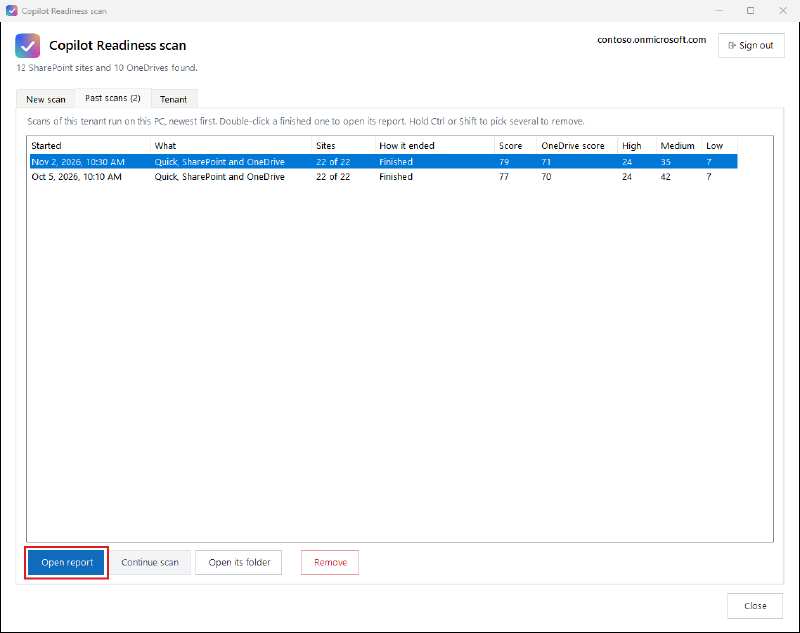
Every scan is kept on your PC with its scores. Run it again after a clean-up and you can see the number move, and show others the difference.
Easy to run, and easy on your tenant#
The choices are already set for a good first scan, so you can just press the button. A quick scan takes a few seconds per site, and it tells you roughly how long it will take before you start.
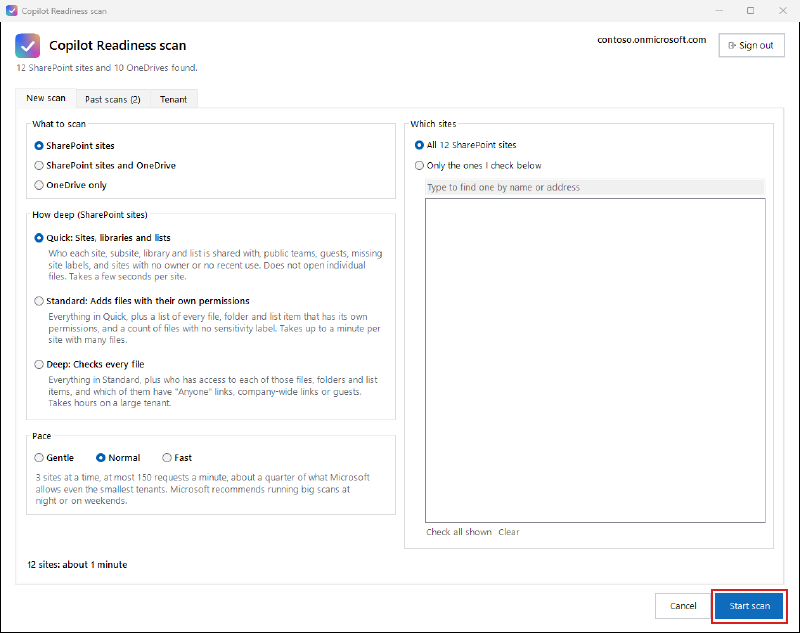
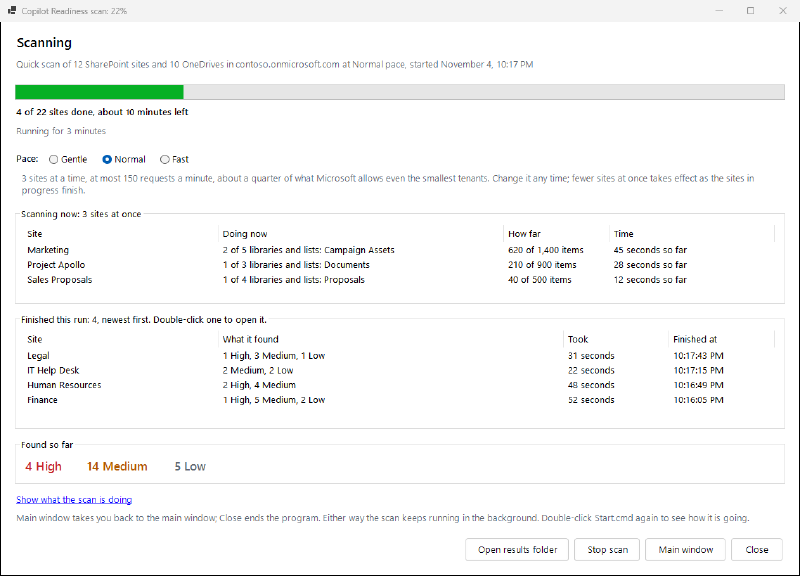
While it runs you can see what it’s doing, and how far along it is. At its normal pace it stays well under what Microsoft allows, and you can slow it down at any time. If a scan gets stopped, it can carry on where it left off.
Is it safe to run?#
Yes, and here’s exactly why:
- It only reads. It doesn’t change anything in your Microsoft 365.
- You stay in control of access. A Global Administrator approves it once, on Microsoft’s own sign-in page. That page lists full control of SharePoint sites, because Microsoft requires that permission to read who has access to a site. The scan uses it only to read.
- OneDrive is your choice. It isn’t scanned unless you choose it. The report then lists the names of people’s shared files, so check that your organization is happy with that first.
- You can remove it completely when you’re done.
You’ll need a Windows PC, and the free PowerShell 7 from Microsoft. The download includes a full guide with pictures for every step, and the README on GitHub has the details.
Find out before Copilot does
The scan is free to download and run. If you'd like someone to run it with you and walk your team through the results, book a readiness review.