Hoodies in a closet, a spreadsheet nobody trusts, and a stream of "do we have any large ones left?" emails. Company Store turns that into a real shop on a SharePoint page. Staff browse and order, and the people running it can see exactly what's left and what's going out.
Nothing extra to host
Products, stock and orders all live in SharePoint lists on your own site. There's no server to run and no outside service to sign up for.
One button to set up
Add the web part to a page and click Set up the store. It builds its own lists and permissions. Eight sample products let you try it before adding your own.
Free items or priced
Most company kit is free, so a price of 0 simply shows as Free. Set prices where you need them, in US dollars, euros or pounds. The store doesn't take payment.
A shop people already know how to use#
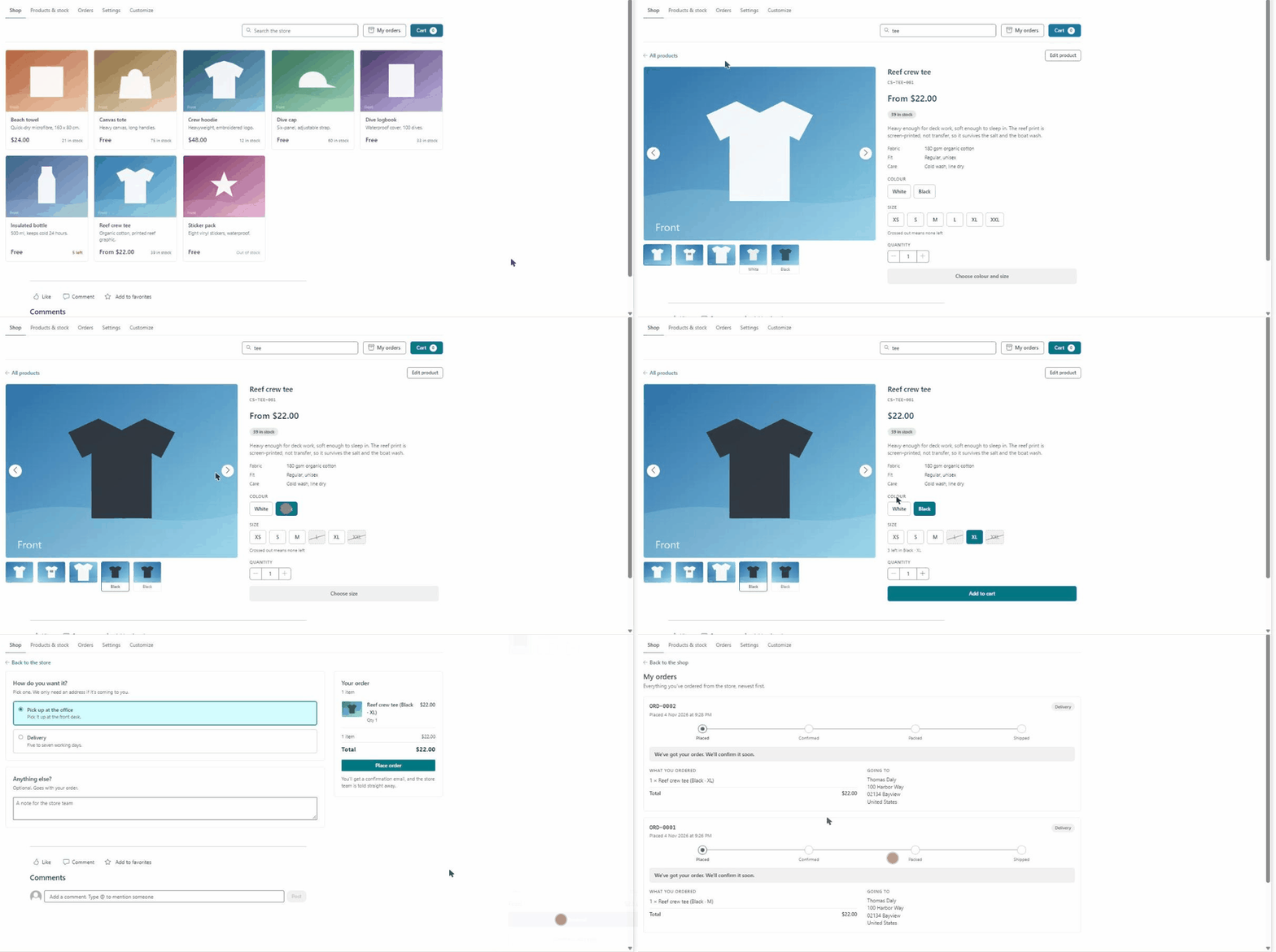
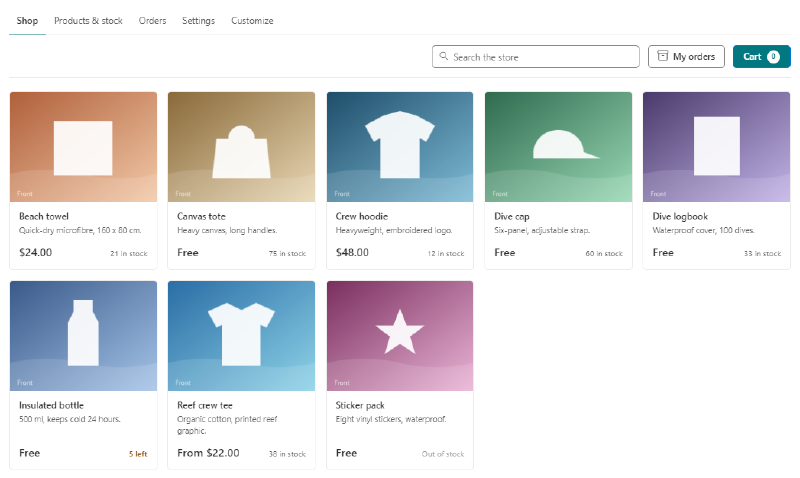
Nobody needs training for this. There’s a grid of products, a search box and a cart. Each card shows the price and how many are left, and the wording changes to a low-stock warning as a product runs out.
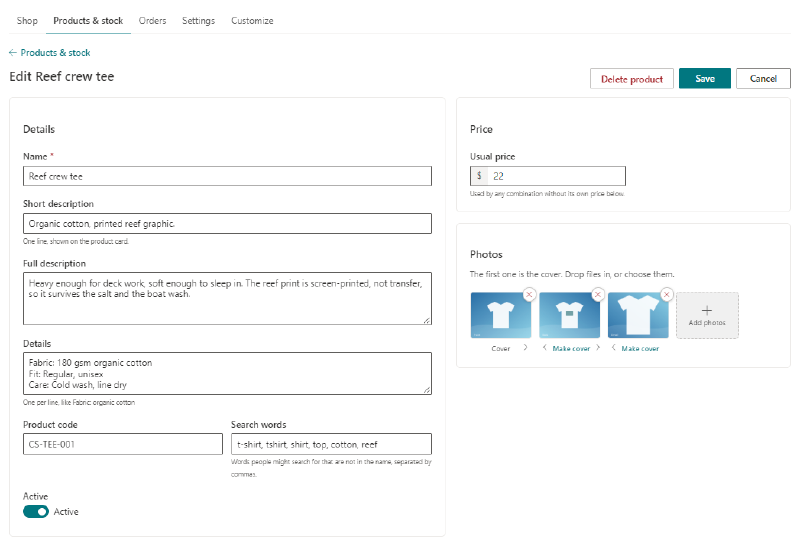
Search looks further than the product name. You can give each product extra search words, so someone typing “t-shirt” still finds the Reef crew tee.
Variations that keep up with your stock#
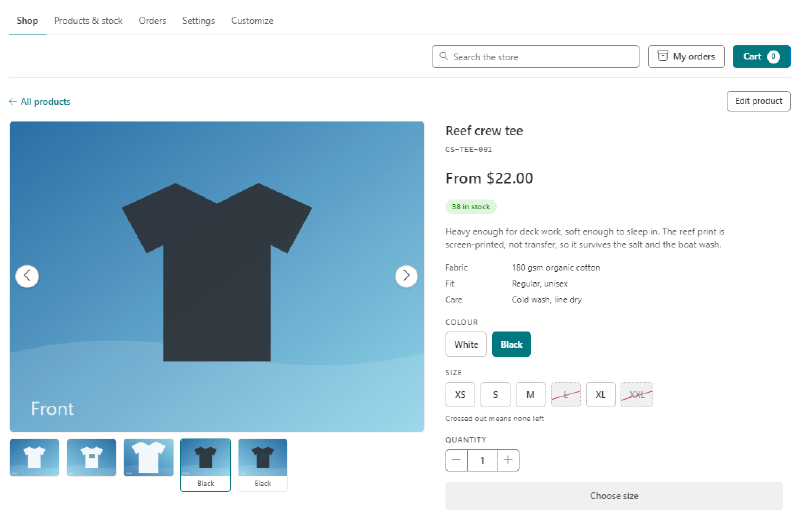
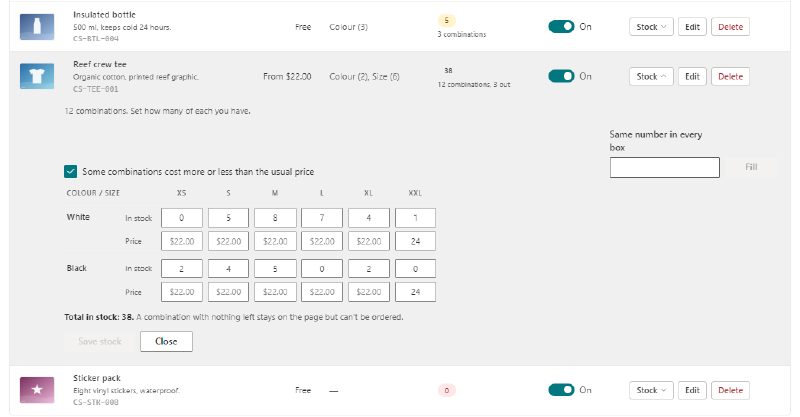
This is the part spreadsheets are worst at. A product can vary by up to three things, like color, size and fit, and every combination has its own stock count.
- Sold-out choices are crossed out. They update as people choose. Here, black has run out of L and XXL, while white has those sizes but no XS.
- Each color can have its own photos. Click Black and the big picture switches to the black shirt.
- Some combinations can cost more. XXL here costs $24 instead of $22, so the card reads “From $22.00” and the price updates once a size is picked.
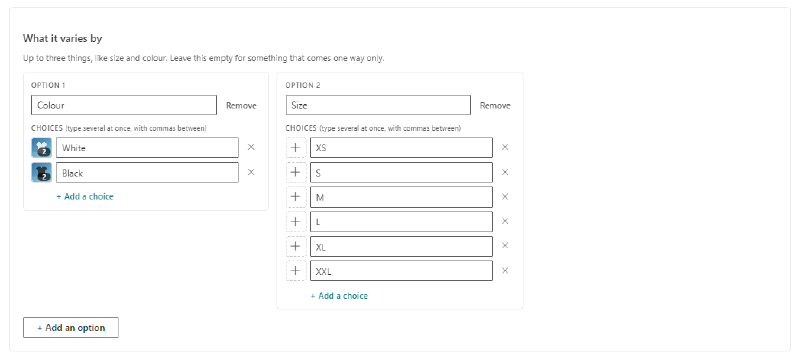
Setting that up is mostly typing. Name the option, then type the choices with commas between them.
The store then builds a stock sheet with a box for every combination. Fill in the counts, or use Fill to put the same number in every box.
A checkout that takes under a minute#
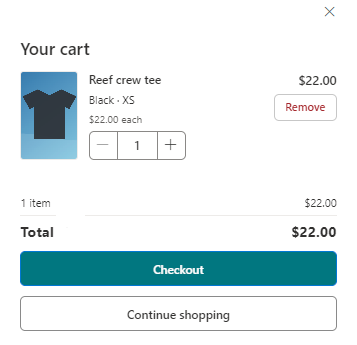
Adding something opens the cart beside the product, so people can keep shopping or go straight to checkout.
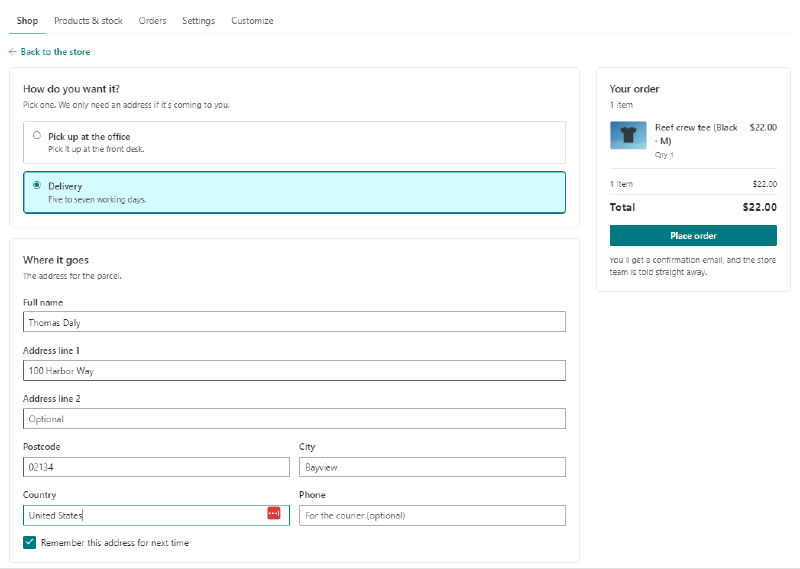
At checkout they choose pick up at the office or delivery. The address boxes only show when they're needed, and the full name comes from their Microsoft 365 profile.
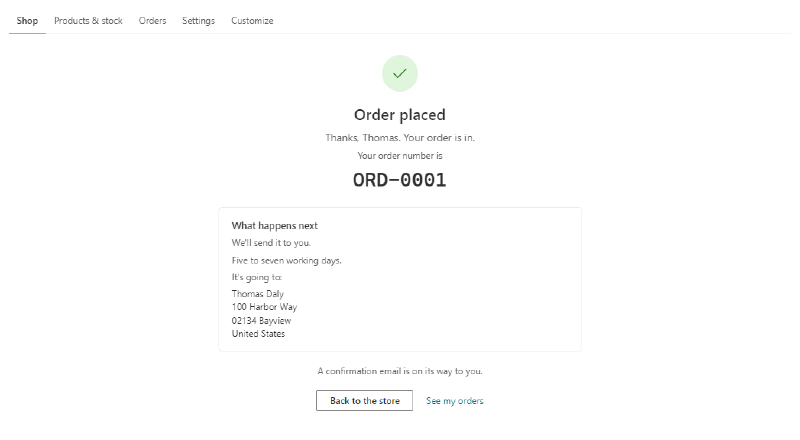
The store can remember an address for next time, and it can be forgotten with one click. Stock comes off when the order is placed. If an item sells out while it's in someone's cart, the cart updates and tells them.
“Where’s my order?” answers itself#
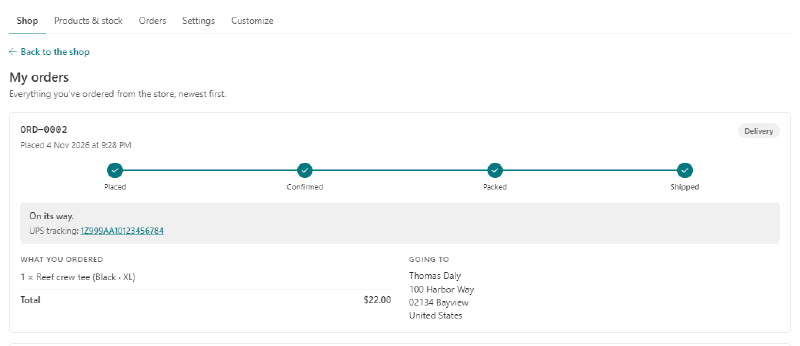
My orders shows everyone their own orders with a progress bar, from placed through to shipped or picked up. Tracking numbers from USPS, UPS, FedEx, DHL and OnTrac are recognized and become a link to that carrier’s tracking page.
Everything the store team needs#
Site owners and the people you make store managers get extra tabs along the top of the store, on the same page staff use. There’s no separate admin site to learn.
Products and stock#
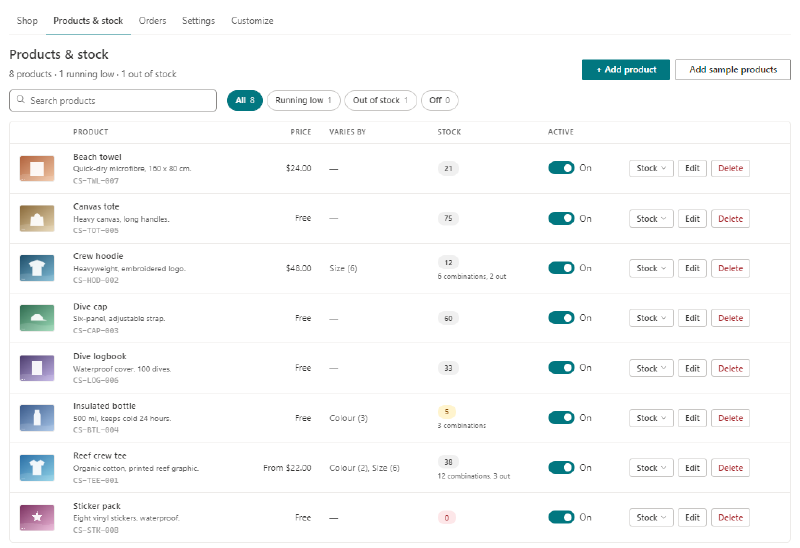
Every product is on one screen, with quick filters for what’s running low and what’s out of stock. Click Stock to change the numbers without opening the product, or switch a product off to hide it from the shop without deleting it.
The product editor holds the descriptions, details, search words and photos. Drop photos in, put them in order and choose a cover.
Orders#
Orders are filtered by where they’ve got to, and you can search them by number, name or item. Open one to see who it’s for, where it’s going and a history of everything that’s happened to it.
Need to change something? You can edit an order after it’s placed. Change a quantity and the stock is put back or taken to match.
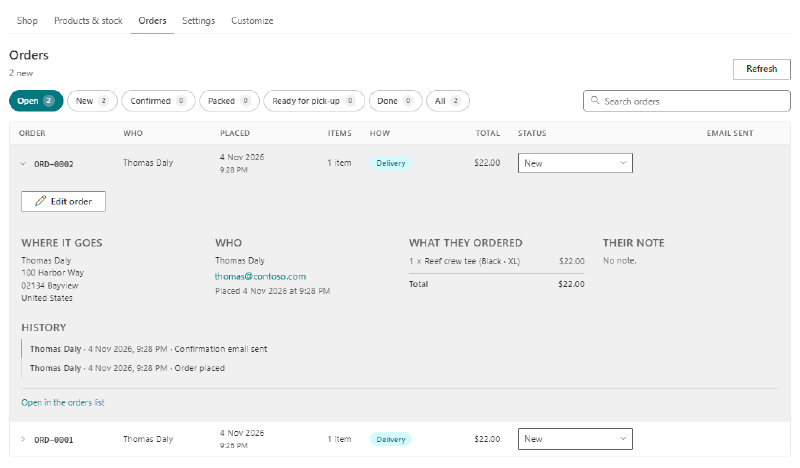
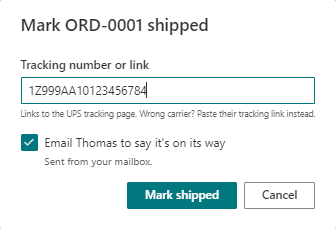
Moving an order along takes one change in the status menu. Mark it shipped, paste the tracking number, and the buyer gets an email saying it's on its way.
The store tells you which carrier it recognized, and you can untick the email if you'd rather not send one.
Your words, not mine#
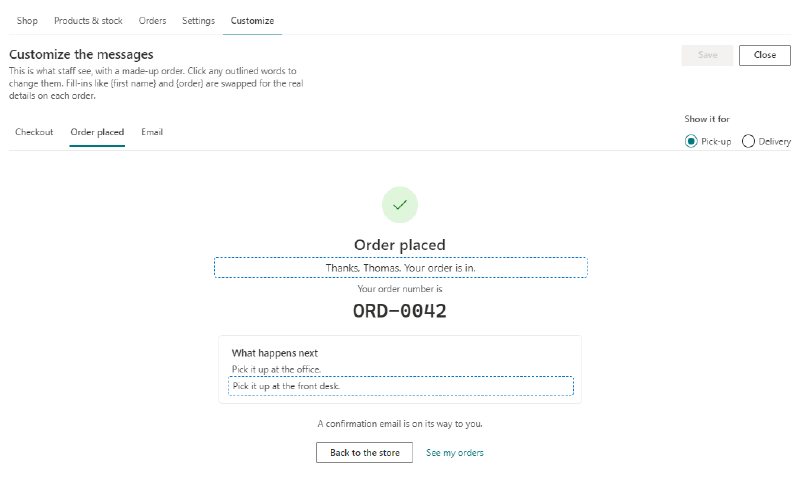
Every message people see can be changed on a live preview. Click the outlined words and type. Fill-ins like {first name} and {order} are swapped for the real details on each order.
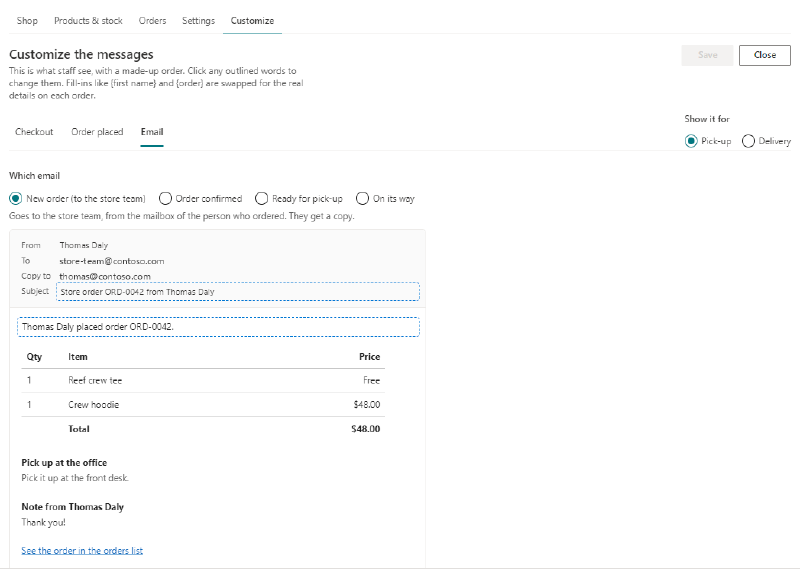
The same goes for the emails: one to the store team for each new order, and one each to the buyer when their order is confirmed, ready for pick-up or on its way. Order emails come from the buyer’s own mailbox, and status emails come from whoever moved the order along, so replies reach a real person.
Who can see what#
- Staff can shop, and see only their own orders.
- Store managers run products, stock, orders and settings, without needing to own the site.
- Site owners can do all of that, and choose who the store managers are.
- Home addresses are locked down. Each person sees only their own saved address, and site owners and store managers can't open that list.
What you’ll need to install it#
Installing it takes a few minutes, but you’ll need the right people:
- A SharePoint Administrator to upload the package to your app catalog.
- A site owner to add the web part to a page and click Set up the store.
- A Global Administrator to approve the store’s request to send email, on the API access page in the SharePoint admin center. The request is for Microsoft Graph’s Mail.Send permission. Microsoft’s guide, Manage access to Microsoft Entra ID-secured APIs, shows where that page is and how to approve a request.
That approval deserves a conversation with IT. It isn’t limited to the store: it lets any SharePoint add-on in your organization send email as the person using it. Without it, the store still works and orders still save, but no emails go out.
The README on GitHub has the full steps.
Try it on your own site
Company Store is free and open source under the MIT license. If you'd like help getting it running or changing it to suit your company, get in touch.