

A property management company had thousands of lease documents coming in, and every one of them needed to end up in the right SharePoint folder for the right owner, tenant, and property. Someone was doing this by hand: open the PDF, read the first page, work out who it belonged to, and click down through the folders to file it.
I wanted to build something that could do the reading and the filing automatically. Getting it working on a few documents was the easy part. Most of what I learned came after real documents started flowing through it.
How It Works#
The system is a chain of Azure Functions connected by Azure Storage Queues. Each stage does one job and passes a message to the next. If a stage fails, the queue retries it.
- A document arrives. It’s uploaded to a SharePoint intake library.
- A webhook fires. A Microsoft Graph subscription tells a Function that something new showed up.
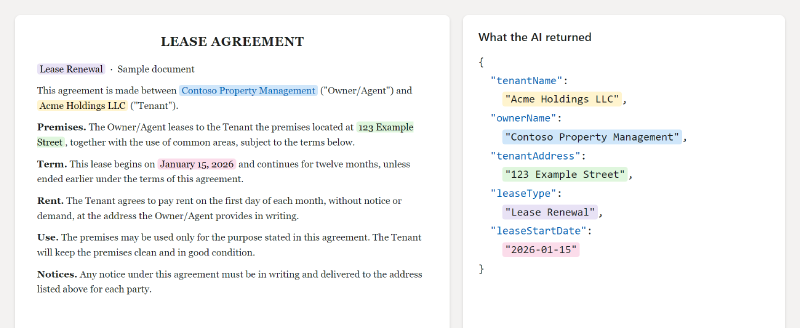
- AI reads it. Microsoft Foundry pulls out the tenant, owner, addresses, lease type, and start date.
- Search finds the destination. The Graph Search API looks for the right site and folder.
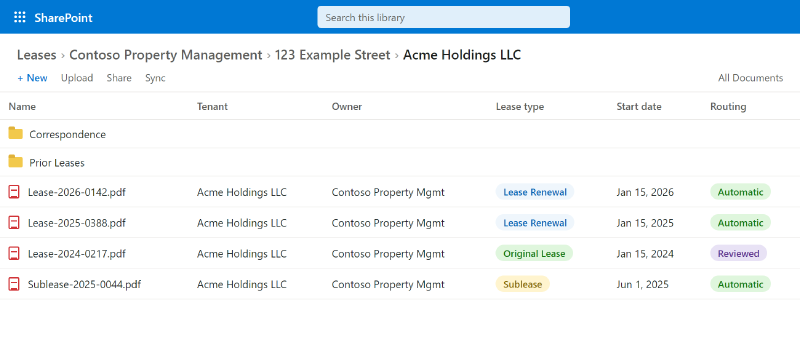
- The document gets filed. It moves to the folder, with the extracted details written to SharePoint columns.
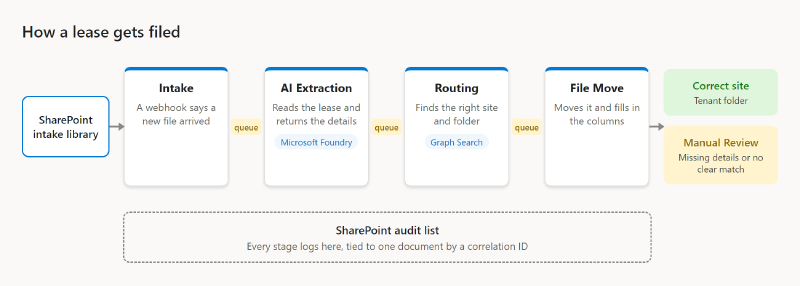
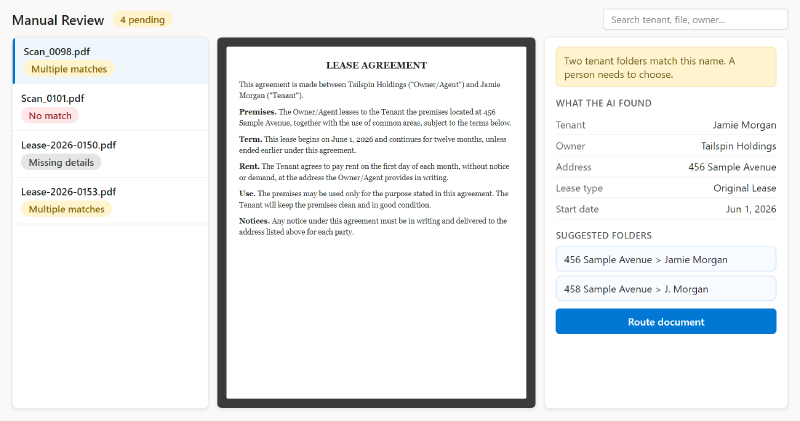
If required details are missing, or the search finds no match or more than one, the document goes to a Manual Review folder instead of disappearing.
What the AI Gets#
The model gets two things: an image of the first page, and text from the first ten pages, read by Azure Document Intelligence.
Many of these leases are scanned, and the text layer in a scanned PDF might be clean, garbage, or missing. The image lets the model look at the page the way a person would, and the text catches details that sit further in.
It returns structured JSON, and that drives everything downstream.
The Good#
When it works, a lease gets dropped in and lands in the right folder with nobody touching it.
The columns turned out to be a big deal on their own. Finding a lease used to mean clicking through a folder tree and hoping it had been filed correctly. Now you can search, filter, and sort by tenant, owner, lease type, and start date.
The queues were also the right call. If one stage slows down, messages stack up and wait, and the other stages keep going.
It’s cheap to run, too. On gpt-5-mini, the AI works out to about a penny a document.
The Surprises#
The pipeline kept triggering itself. Writing the extracted details back to a document counts as a change, and a change fires the webhook. One upload was setting off more than eleven runs within a few seconds. The fix was an ETag-conditional update that claims the document first. Only one run can win, and the others get a 412 Precondition Failed and stop.
The model ran out of room to answer. I’m using a reasoning model, and its reasoning counts against the completion limit. With a 2,000-token cap, it could use it all up on a dense lease page and return empty JSON, which looked exactly like a lease with missing details. These two settings took a test batch from eight of those failures to none:
private const int MaxCompletionTokens = 16384;
private const string ReasoningEffort = "low";
Sites weren’t named the way I assumed. I was searching by owner name, but the property sites were named after building addresses, so owners with several buildings were missed. The system now learns an address-to-site map.
Full addresses made matching worse. The documents have the full street, city, state, and ZIP code, but the property list has only the street. Those extra words dropped the fuzzy match score to about 0.5, well under the 0.85 it needs, so good documents went to Manual Review. Now it compares just the street line.
Be careful what the system learns from. It was saving a new address match before the document had finished moving. One bad route could have misdirected every later document for that building. Now it only learns after the move is validated.
Moving across drives isn’t really a move. Between SharePoint document libraries on different drives, you have to copy the file, check that it arrived, and then delete the original. A file can show up at 0 bytes while it’s still copying, so the check has to compare sizes too. The copy runs in the background, so I re-queue the check every 30 seconds, up to 20 times, rather than holding a Function open.
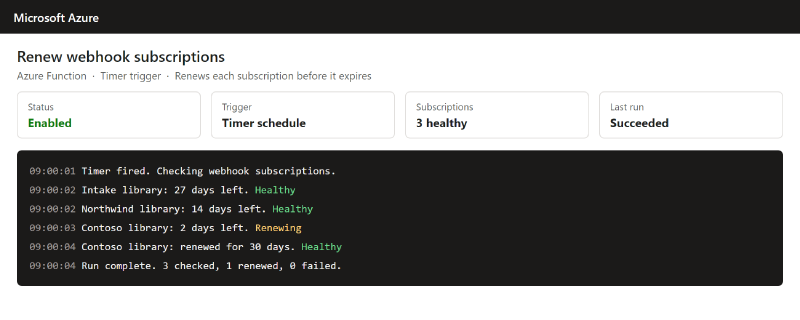
Webhook subscriptions quietly expire. We set ours to about 30 days. When they lapse, you get no errors and no alerts. Documents just stop being processed. I had to build a timer function that runs on a schedule to renew them.
Queue messages have a size limit. A message maxes out at 64KB, which is about 48KB after base64 encoding. Once you’re passing extracted details and routing decisions between stages, that fills up. I had to be deliberate about what goes in each message and what the next stage looks up fresh.
What I’d Tell You Before You Build One#
Manual Review isn’t failure. It’s the design. Early on, I thought the goal was 100% automatic routing. The real goal is making the easy cases automatic and the hard ones visible. A document in a review folder is much better than one quietly filed in the wrong place.
We also built a SharePoint web part for clearing that queue, and it turned out to be really critical. It shows the document next to what the AI found and the suggested folders, so people can do everything within a few clicks instead of interacting with a SharePoint list. It also let us fine-tune exactly what actions they could take.
It may never be perfect. Most documents file themselves, and we keep fine-tuning it, but the documents coming in are clearly not ideal in some cases. Scan quality varies, and so do the types of leases, which makes this a never-ending problem. It’s getting better, and we can at least categorize most of them.
Documents with a single purpose usually work great. When a bunch of things are jammed into one file, it doesn’t work out well, and it takes a lot longer to parse. We use a different technique for those multi-purpose files, which I won’t get into here.
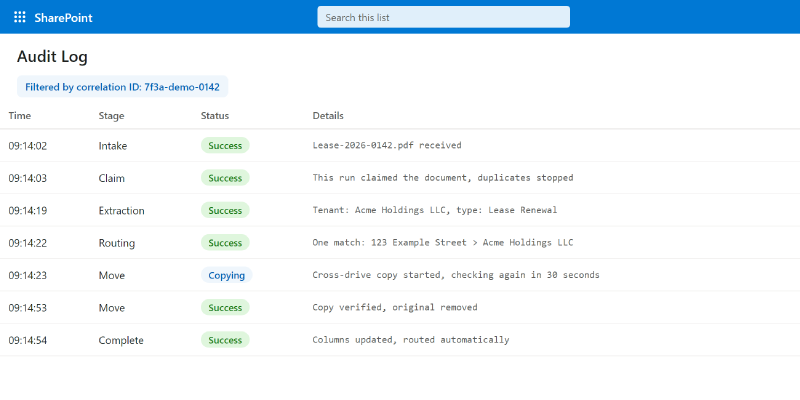
Audit everything. Every stage writes to a SharePoint audit list, with a correlation ID that ties each entry to one document. When something goes wrong, you can trace that document’s whole journey and see where it went sideways. This saved me hours of debugging.
Know where the data goes. Leases hold personal details, so people will ask. Each document ends up in the customer’s SharePoint, in the correct site and tenant folder.
Wrapping Up#
The person who used to spend the day filing leases now only handles the cases that land in Manual Review.
Ultimately, this project was extended to take on more initiatives like this one, related to scanning and more complex work. That’s probably for another post.
The pattern works beyond leases, too. If you can describe what to pull from a document and where it should go, it’s a candidate for this kind of pipeline.