Last year I posted a blog article which described the issue with SharePoint 2010 and having a footer. Well similarly SharePoint 2013 has some of the same obstacles when adding a footer. If you are interested in reading more detail into the issue w/ 2010 then go here: My SharePoint 2010 Sticky Footer Solution.
It basically boils down to these 2 issues:
- If you just add a footer to your master page it will be displayed directly under the page content. On a page that has little content then the footer may show half way up the page.
- Alternatively if you try a pure CSS sticky footer solution it may not work correctly either because SharePoint uses the page height to calculate where the scroll bars will go (mainly due to the header / ribbon always being at the top).
[Update 10/9/2013] – Added code from Robert, to handle MDS type pages.
[Update 9/1/2013] – I noticed that these scripts do not work on Team Sites, this is due to the Minimal Download Strategy Feature that is enabled. Turn that off and this work perfectly fine. I’m still researching how to make the scripts how with that feature enabled.
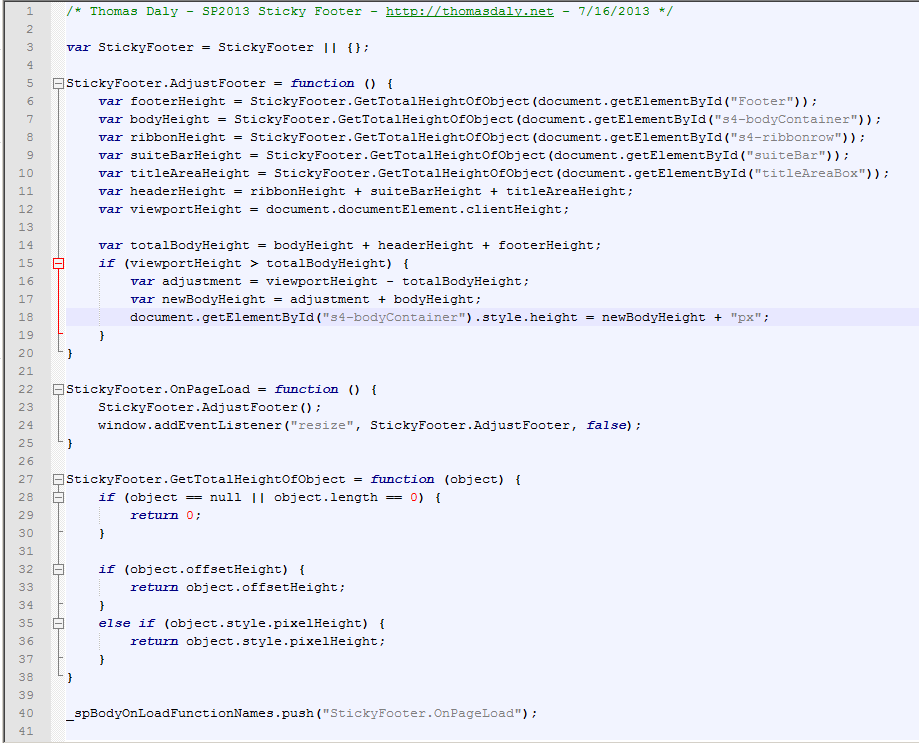
I’ve also updated the code to use it’s own function to detect height. Padding (top/bottom) can sometimes throw off the size computations.
Link the script file#
As you can see below I’ve hosted my file in the Style Library
The Footer Control#
Simply add this div after s4-bodyContainer in the master page file.
© My Footer Solution 2013As you can see below an export of the DOM from the IE Dev Toolbar.
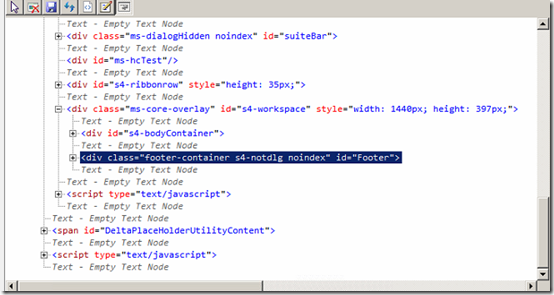
Here below you can see where in the Master Page (based on seattle.master) I look for the id=”DeltaPlaceHolderUtilityContent” and you’ll see 3